---
title: anura-gallery
url: 'https://doc.brix.ch/anura/webcomponents/components/gallery'
markdown: 'https://doc.brix.ch/anura/webcomponents/components/gallery.md'
lang: en
date: '2026-10-26'
description: 'Technical documentation for brix:anura webcomponents – Software developed by brix'
taxonomy:
category:
- docs
---
[](#)
[ Welcome ](https://doc.brix.ch/) [ brix:anura ](https://doc.brix.ch/anura) [ Anura Webcomponents ](https://doc.brix.ch/anura/webcomponents) [ Components ](https://doc.brix.ch/anura/webcomponents/components) anura-gallery
# anura-gallery
#### Table of Contents
- [Attributes](#attributes)
- [Events](#events)
- [Slots](#slots)
- [Parts](#parts)
```html
```
The gallery component will show assets in a gri:.
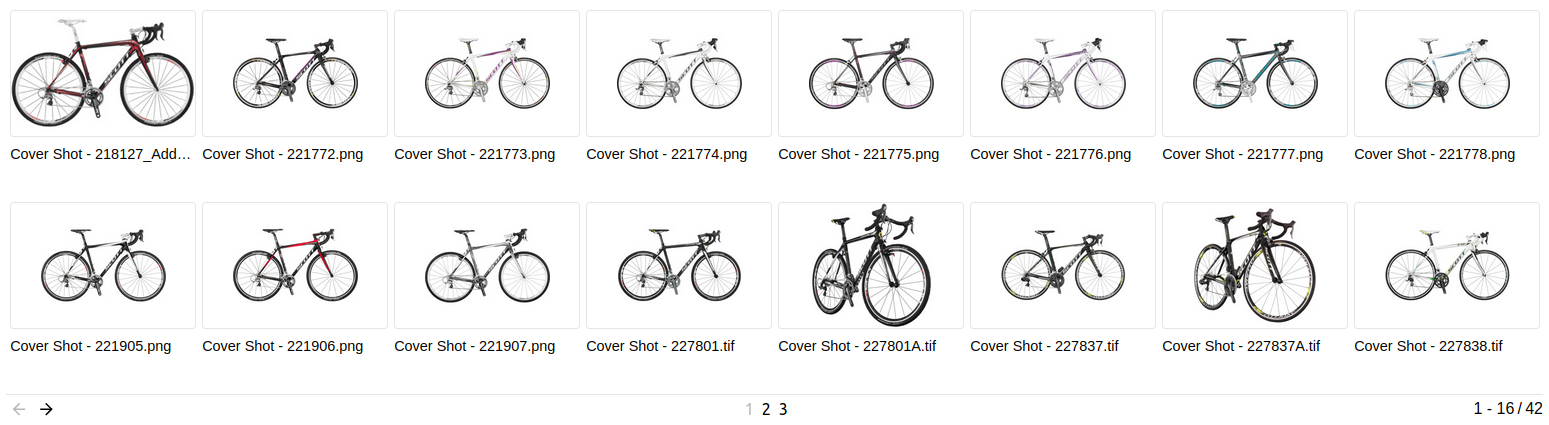
By default, the gallery consists of a number of ``s and an `` at the bottom.
## Attributes
### adapter
> **required: yes**, live: no, default: -
With which adapter to talk to (for translations and suggestions)
``
### search
> required: **when no *node* is provided**, live: yes, default: -
Which component the gallery should get its instructions from, e.g.:
- `anura-tree`
- `anura-searchbar`
- `anura-select`
You can combine multiple search components, e.g. `anura-tree,anura-searchbar`, which will be ANDed together. Depending on where they live, you may use a selector such as `aside > *`.
``
### node
> required: **when no *search* is provided**, live: yes, default: -
The content of which node that the gallery should display. This will cause the gallery to ask its *adapter* for the content of said node.
``
#### recursive
> required: no, live: yes, default: -
When displaying a node, whether the content should also include everything that is contained in subnodes beneath a node.
``
### sort
> required: no, live: yes, default: -
How the displayed assets should be sorted, ending in either `_asc` or `_desc`. The exact wording will depend on your *adapter*, e.g. `name_asc`. Known values:
- Bynder: `name, dateCreated, dateModified, datePublished`
- CELUM: `id, name, uploaddate, lastmodified, extension, assettype, score, original(name), (file)size, info_{id}`, default is `id`
- pixx.io: `createDate, fileName, fileState, rating, subject, uploadDate`
- Sharedien: `relevance, file_name, system_import_date`, default is `relevance`
``
### page-size
> required: no, live: on-load, default: 50
How many assets should be displayed at once on a page.
``
### selected
> required: no, live: write-only, default: -
When using the [checkbox](#buttons) feature on assets, updates itself with a comma-separated list of assets that currently have the *selected* state. This value is only written, and not read.
``
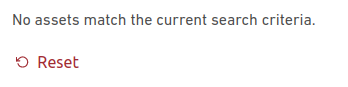
### offer-reset
> required: no, live: yes, default: true
When a query yields no results, tell the user and offer him an `` to start over (translation key: `noAssets`).
``
### basket
> required: no, live: yes, default: -
Where an instance of `` can be found to collect assets in, e.g. `#my-basket`. Attempts auto-detection of `anura-basket`
``
### quick-download
> required: no, live: on-load, default: -
Which download format to use for the quick download button, e.g. `Original`. Note that this suppresses the download selection dialog.
``
### lightbox
> required: no, live: yes, default: creates one
Where an instance of `` can be found to display assets in, e.g. `#my-lightbox`. When none is provided or detected, a "blank" lightbox will be appended to the body. This can be prevented by passing `lightbox="false"`, in which case nothing will happen (for custom actions, use the [asset-details](#asset-details) event).
``
### mode
> required: no, live: yes, default: grid
Which display mode to use. Known values:
- grid - assets are placed in a grid with even spacing between the assets
- dense - same as `grid`, but no labels are shown, only thumbnails
- flex - assets are placed as a flex row
``
## Events
### assets-loading
> `{details: {node: nodeId, search: search-terms, keepContent: bool, pageRequest: pageRequest}}`
When the gallery is loading new assets, either through a node or a search request. A good time to clear counters and such.
### assets-loaded
> `{details: {total: totalCount, assets: AnuraAsset[], pageRequest: pageRequest}}`
When assets have been loaded (through whatever mechanism), informs other components (such as `anura-paginator`) about the total number of assets, the new assets themselves, as well as the pageRequest (contains current paging information).
### asset-added
> `{details: {asset: assetData, instance: elementInstance}}`
When an individual `anura-asset` has been added to the gallery. Useful when you want to tweak something about the asset that you couldn't do via the asset slot.
### asset-selection
> {details: selectedAssets}
When a change to the [selected assets](https://doc.brix.ch/anura/webcomponents/components/asset#asset-select) occurs and the component updates its `selected` attribute.
### paginate (inbound)
> pageNumber
Instruct anura-gallery to display the provided page number - used by `anura-paginator` to tell the gallery to advance to an arbitrary page. Note that the page number is currently not validated, so sending a non-existent page number may lead to undefined behaviour.
### asset-details
> `{details: {asset: assetData}}`
When an individual `anura-asset` has been clicked on. By default this triggers the `` unless `lightbox="false"` is set.
## Slots
- **header** - the header slot will appear before the gallery.
- **footer** - the footer slot will appear at the very end.
- **asset** - configure your own asset. Default is ``
```html
```
- **paginator** - configure your own paginator. Default is ``
```html
```
> > > > > When using the built-in components, the part selector might be `anura-gallery::part(paginator-button)`, but when you declare your own it changes to `anura-paginator::part(paginator-button)`, as it is no longer part of the gallery.
## Parts
```html
```
[ ](https://doc.brix.ch/anura/webcomponents/components/filters) [](https://doc.brix.ch/anura/webcomponents/components/lightbox)
---
## Navigation
- Parent: [Components](https://doc.brix.ch/anura/webcomponents/components.md)
- Previous: [anura-filters](https://doc.brix.ch/anura/webcomponents/components/filters.md)
- Next: [anura-lightbox](https://doc.brix.ch/anura/webcomponents/components/lightbox.md)